
If you are trying to figure out how to build a business website with WordPress, the good news is that you do not need to know how to code or have every detail figured out before you begin.
What you do need is a plan.
A business website is more than a collection of pages with your logo at the top. It should help people understand what your business does, who it helps, why they should trust it, and what they should do next.
That means the real starting point is not choosing colors, installing plugins, or trying to make the homepage look perfect.
It is understanding what job the website needs to do for your business.
Once that is clear, the technical pieces become much easier to organize.
You can choose a domain and hosting, install WordPress, decide which pages you need, build a simple navigation structure, create your content, design the site, make it mobile friendly, and prepare it for search engines and real visitors.
You do not have to build everything at once.
In fact, trying to add every feature, tool, page, automation, and marketing idea before launching can turn a relatively simple website project into something much harder than it needs to be.
A better approach is to build the foundation first.
Create the pages your business actually needs.
Make it easy for visitors to understand what you offer.
Give them a clear next step.
Then improve the website as the business grows and you learn more about what your visitors actually need.
That is the approach we are going to use in this guide.
We will walk through the process step by step, from planning the website and setting up WordPress to building the essential pages, creating clear navigation, preparing the site for mobile visitors and search engines, testing everything, and eventually launching it.
By the end, you should understand not only how to build the website, but why each piece belongs there in the first place.
Because the goal is not simply to have a WordPress website.
The goal is to build a useful business website that has a reason to exist.
What Does a Business Website Actually Need to Do?
Before you build a business website, it helps to understand what the website is supposed to accomplish.
That sounds obvious, but it is easy to skip.
A new business owner can spend hours thinking about colors, fonts, images, layouts, plugins, and other design choices before answering a much more important question:
What should happen when someone visits this website?
A useful business website should help a visitor quickly understand a few basic things.
Who is this business for?
The visitor should be able to recognize whether the business is relevant to them.
What does the business provide?
Products, services, information, resources, software, memberships, recommendations, or something else should be reasonably clear.
Why should the visitor keep paying attention?
The website needs to communicate useful value instead of expecting people to search through multiple pages trying to figure out why they are there.
What should the visitor do next?
That next step will depend on the business.
It might be:
- Contact the business
- Request more information
- View a product or service
- Make a purchase
- Schedule an appointment
- Join an email list
- Download a resource
- Read another useful article
Not every visitor will take that action immediately, and that is okay.
The website still needs to make the path available.
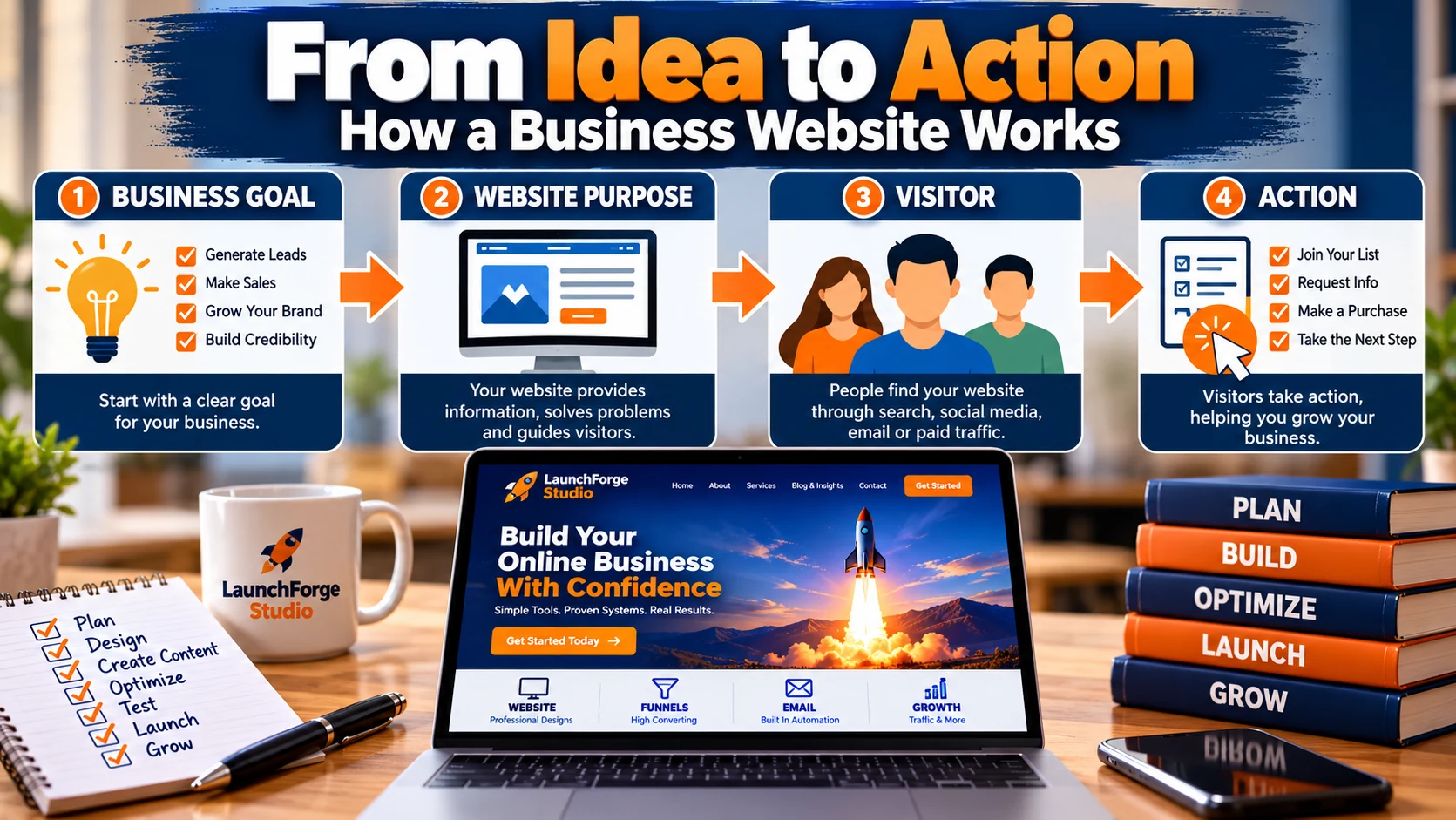
A useful business website connects a clear business goal with the website’s purpose, the people who visit it, and the action you want them to take.
A Business Website Should Create Clarity
One of the easiest ways to make a website more complicated than necessary is to forget about the person using it.
You know your business.
Your visitor does not.
You may understand how all your products, services, pages, tools, and ideas fit together because you have spent weeks, months, or years thinking about them.
Someone arriving through a search engine, social media post, advertisement, referral, or email may be seeing the business for the first time.
They need context.
A good website helps provide it.
Instead of making visitors piece together the business themselves, the website should guide them toward understanding:
This is what we do.
This is who we help.
This is why it may matter to you.
This is what you can do next.
That does not require an enormous website.
A relatively small website with clear information and purposeful pages can often do a better job than a much larger website filled with content that has no clear role.
Think About the Visitor Before the Website
Before deciding what pages to build, think about the person who may eventually use them.
What brought that person to the website?
What might they be trying to solve, learn, compare, find, or accomplish?
What information would help them decide whether your business is relevant?
What question are they likely to ask next?
Those questions can help determine which pages, content, and calls to action actually belong on the site.
This also gives you a useful filter when new ideas appear during the build.
Instead of asking:
Can I add this to my website?
Ask:
Does adding this help the visitor understand the business or take a useful next step?
If the answer is no, you may not need it yet.
Give the Website a Job
Your website can support several parts of the business over time.
It can help people discover you.
It can explain what you offer.
It can establish trust.
It can answer common questions.
It can capture leads.
It can direct people toward products or services.
It can publish useful content.
It can support marketing campaigns.
But you do not need to build every possible function on day one.
Start with the primary job.
For example, a service business may initially need a website that explains its services and makes contacting the business easy.
An online store may need to help visitors find, evaluate, and purchase products.
An educational website may focus first on useful content and building an audience.
An online business may combine several of these functions as it grows.
The exact structure can change.
The underlying principle does not:
Your business website should make it easier for the right visitor to understand your value and take the next appropriate step.
Once you know what that job is, you can start choosing the pieces needed to build it.
What Do You Need Before Building a WordPress Website?
Once you understand what your business website needs to accomplish, it is tempting to jump directly into WordPress and start building pages.
You can do that.
But spending a little time gathering the basic pieces first can make the actual build much easier.
You do not need a giant planning document or every sentence of website copy finished before you begin.
You simply want enough of the foundation in place that you are not stopping every few minutes to figure out what comes next.
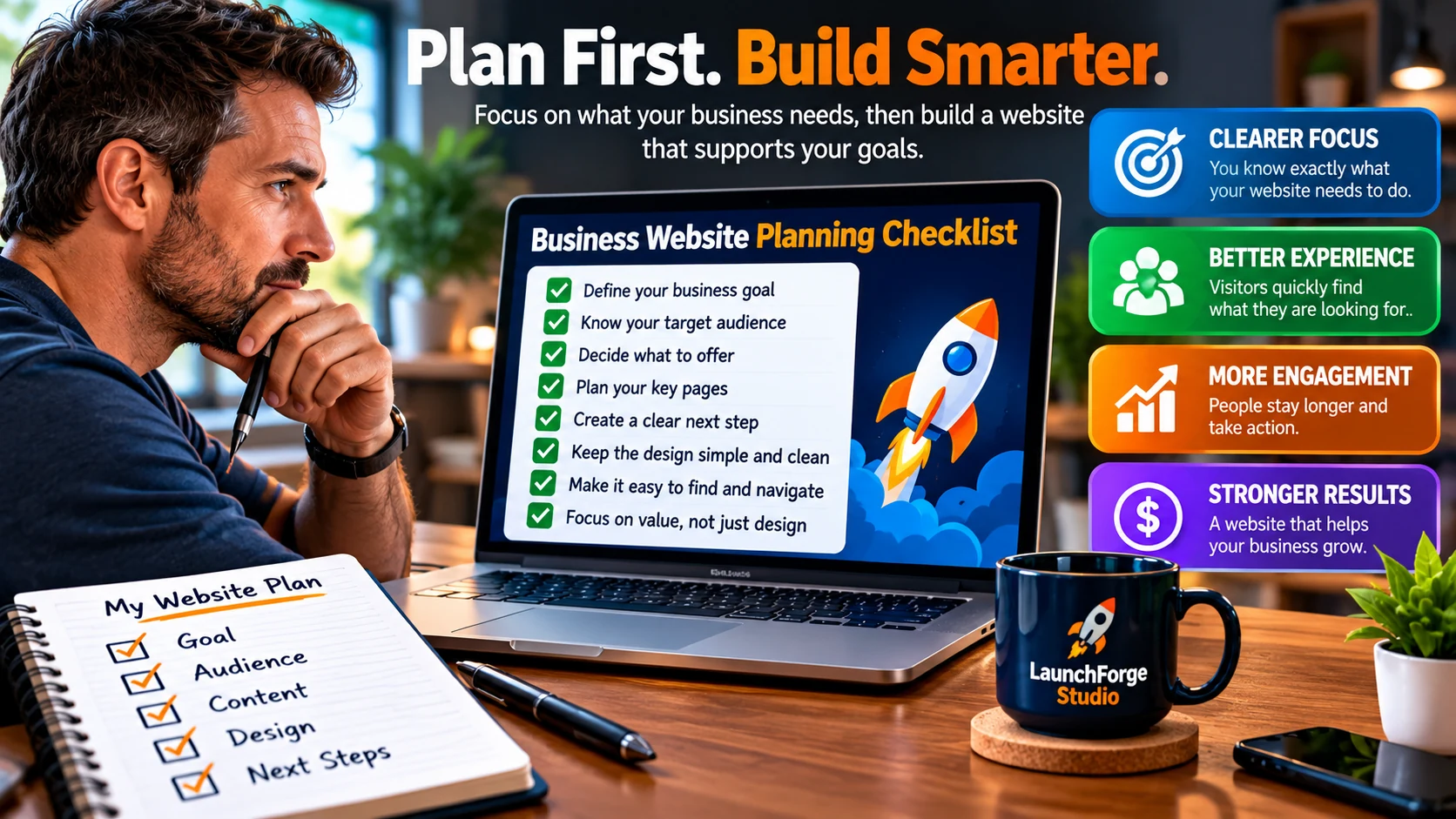
Planning your business goals, audience, content, pages, and next steps before designing can make your website easier to build and more useful to visitors.
A Domain Name
Your domain name is the web address people use to reach your website.
For LaunchForge Studio, for example, that address is:
launchforgestudio.net
A business domain should generally be easy to remember, easy to type, and closely connected to the business or brand when possible.
You do not need to spend weeks trying to invent the perfect domain.
You need one that represents the business clearly enough to move forward.
Website Hosting
Your domain gives the website an address.
Hosting gives the website somewhere to live.
A web host provides the server environment where WordPress, your website files, images, database, and other resources are stored and made available to visitors.
Different hosting providers offer different combinations of performance, support, storage, security features, backups, email, and WordPress tools.
For a beginner, the goal is not necessarily to find the most complicated hosting package available.
It is to choose hosting that can reliably support the website you are actually building.
WordPress
WordPress is the content management system that will power the website we are discussing in this guide.
It provides the foundation for creating and managing pages, blog posts, images, menus, users, plugins, and many of the other pieces that make up the site.
One reason WordPress can work well for a growing business is that the website does not have to remain exactly as it was on launch day.
Pages can be updated.
Content can be added.
New functionality can be introduced when there is a reason for it.
The website can grow with the business instead of requiring you to know everything you may ever need before you start.
Your Basic Business Information
Before building pages, gather the information you already know visitors will need.
That may include:
- Business name
- Logo
- Contact information
- Products or services
- Short description of the business
- Service area or location when relevant
- Business hours when relevant
- Social media profiles
- Existing brand colors or visual guidelines
If some of those pieces are still developing, that does not mean the website has to remain on hold indefinitely.
Use what you have and improve it as the business develops.
Content for Your Core Pages
You do not need every page completely written before opening WordPress.
It does help to know what your most important pages need to communicate.
For example, you may want rough notes for:
Home: What does the business do, who is it for, and where should the visitor go next?
About: Who or what is behind the business, and what should visitors understand about it?
Products or Services: What can someone buy, use, request, or learn more about?
Contact: How can someone reach the business?
Even a basic outline can prevent you from staring at a blank page wondering what belongs there.
We will look more closely at the pages a business website may need later in this guide.
Images and Other Visual Assets
Gather any existing visual material that may be useful.
That could include:
- Your logo
- Product photographs
- Team or business photographs
- Portfolio examples
- Brand graphics
- Icons
- Existing promotional images
You do not need hundreds of images.
In fact, adding images simply because there is empty space on a page can make a website feel more cluttered rather than more useful.
Choose visuals that support the content and help communicate something relevant.
A Clear Primary Goal
This is the piece that connects everything back to the previous section.
What is the main thing you want the website to help accomplish?
Maybe you want visitors to contact the business.
Maybe you want them to purchase a product.
Maybe you want to build an email list.
Maybe the first goal is simply to establish a useful online presence and begin publishing content.
Your website can eventually support multiple goals, but identifying the primary one gives you a starting point for deciding what to build first.
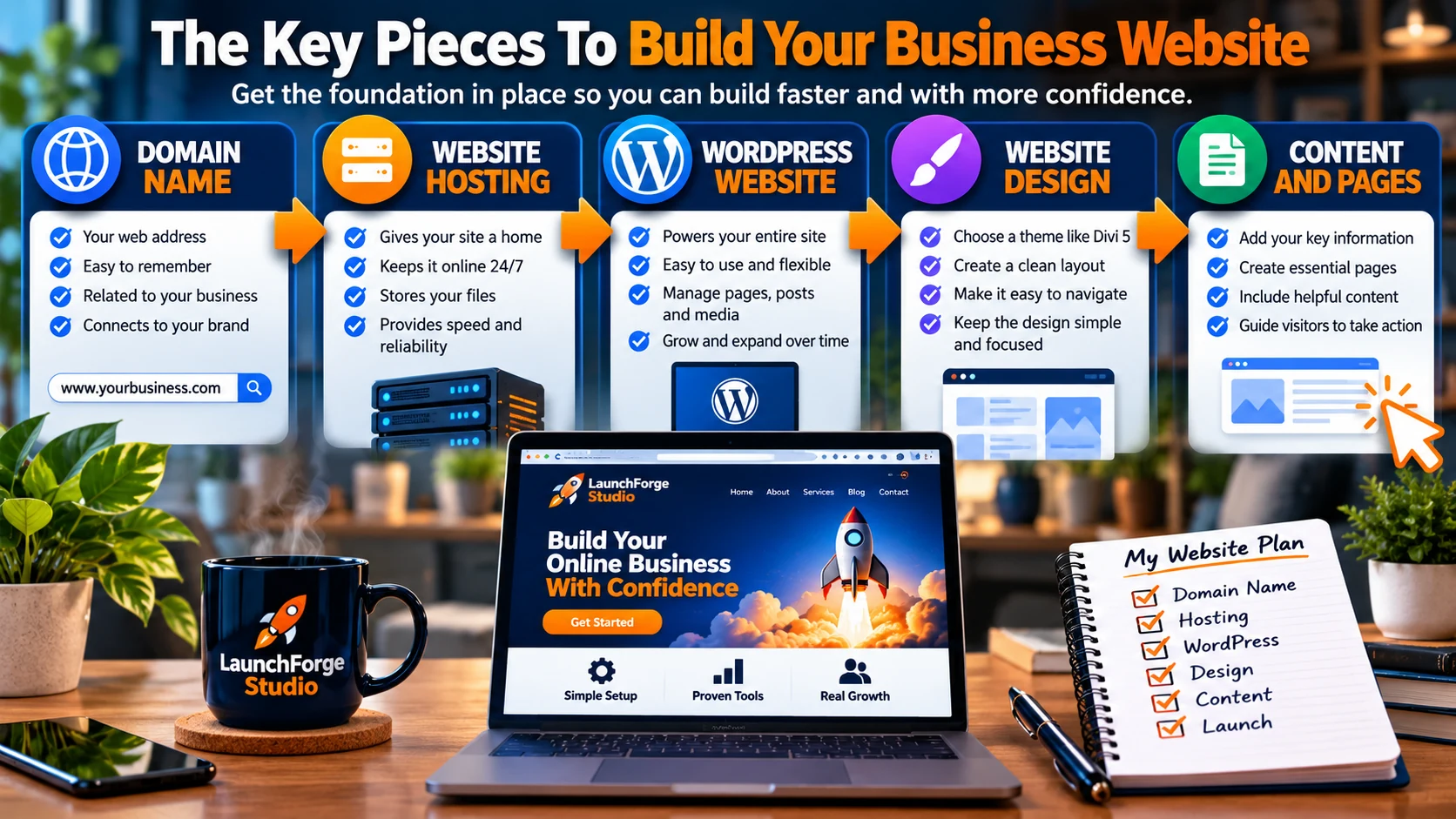
A business website starts with a few essential pieces working together: a domain name, website hosting, WordPress, a clear design, and useful content and pages.
You Do Not Need Everything Before You Begin
There is an important difference between being prepared and waiting until everything is perfect.
Preparation helps you move.
Perfection can keep you from moving at all.
If you have a domain, appropriate hosting, WordPress, basic business information, enough content to begin creating your core pages, and a clear idea of what the website needs to accomplish, you have enough to start building.
The rest can develop as you go.
WordPress.com vs WordPress.org: What Is the Difference?
If you are new to WordPress, you may run into two names that sound almost identical:
WordPress.com
and
WordPress.org
They are related to the same WordPress ecosystem, but they are not the same way of building and managing a website.
Understanding the basic difference can prevent confusion before you start.
WordPress.org and Self-Hosted WordPress
When people talk about building a self-hosted WordPress website, they are generally referring to the WordPress software available through WordPress.org.
You choose a hosting provider, install WordPress on that hosting environment, and manage the website from there.
This approach gives you significant control over how the site is built, including the themes, plugins, design tools, and other functionality you choose to use.
It also means that hosting, maintenance, backups, security, updates, and other website responsibilities need to be handled either by you or through the services and tools you choose.
WordPress.com
WordPress.com is a hosted service built around WordPress.
Instead of arranging separate hosting and then installing WordPress yourself, the hosting environment is part of the service.
The features and level of flexibility available can depend on the plan being used, so it is important to look at what a particular plan includes before deciding whether it fits your business.
Which One Are We Talking About in This Guide?
For this guide, when we discuss building a business website with WordPress, we will primarily be talking about a self-hosted WordPress website.
That is also the type of WordPress environment used to build LaunchForge Studio.
You do not need to memorize every difference between WordPress.com and WordPress.org before moving forward.
Just remember the basic distinction:
WordPress.com provides a hosted WordPress service.
WordPress.org provides the WordPress software commonly used for self-hosted websites.
With that cleared up, we can move into the actual building process.
Step 1: Choose Your Domain Name and Hosting
Now that the basic planning is out of the way, it is time to start putting the website together.
For a self-hosted WordPress website, two of the first pieces you need are a domain name and web hosting.
We already covered what they are.
Now let’s look at how to approach choosing them.
Choose a Domain That Represents the Business
Your domain becomes part of the identity of your website.
Ideally, someone should be able to hear or see the domain and connect it with your business without needing a complicated explanation.
Keep it as simple as you reasonably can.
A good starting point is to look for a domain that is:
- Easy to spell
- Easy to remember
- Closely related to your business or brand
- Short enough to type without unnecessary complexity
- Free from confusing words, numbers, or characters when possible
Your first choice may not always be available.
That is normal.
If the exact business name is taken, consider a sensible variation rather than adding a string of unrelated words simply to find something available.
The goal is not to discover the most clever domain name on the internet.
The goal is to give your business a clear, usable address online.
Think Beyond the First Few Months
Before registering a domain, consider whether it gives the business enough room to grow.
A domain that is extremely narrow may make sense today but become awkward if the business expands later.
For example, imagine building a business around one specific product and putting that product directly into the domain name.
That could work perfectly if the business will always revolve around that product.
But if you eventually add services, educational content, additional products, or other offers, the original domain could feel unnecessarily restrictive.
You cannot predict everything your business will become.
You can simply avoid boxing yourself in when there is no reason to.
Choose Hosting Based on What You Actually Need
Hosting comparisons can become overwhelming quickly.
Storage.
Bandwidth.
Server locations.
Backups.
Security.
Caching.
Email.
Staging environments.
Performance features.
And enough technical terminology to make a beginner wonder whether they accidentally signed up to operate a data center.
You do not need to become a server administrator to build your first business website.
Focus on the practical requirements.
Look for hosting that supports WordPress and provides the resources needed for the type of website you are planning to build.
It is also worth considering factors such as:
- Reliability
- Website performance
- Security features
- Backup options
- Customer support
- Ease of managing WordPress
- The ability to grow if the website needs more resources later
- The actual renewal cost, not just the introductory price
That last point is easy to overlook.
An inexpensive introductory offer can look attractive, but the ongoing cost matters more if you plan to keep the website for years.
You Do Not Need the Biggest Hosting Plan
It is easy to buy more hosting than a new website actually needs.
A beginner may see words like premium, business, professional, or unlimited and assume the most expensive option must be the safest choice.
Not necessarily.
Start with enough capacity and functionality to support the website you are building.
If the business grows and the website eventually requires additional resources, you can evaluate those needs when they actually exist.
This is another place where the LaunchForge approach applies:
Build for what you need now while leaving yourself room to grow.
Keep Your Domain Information Organized
Once you register the domain and establish hosting, keep the important account information organized.
Know:
- Where the domain is registered
- Where the website is hosted
- When each service renews
- Which email address controls the accounts
- Where your login information is securely stored
This may seem like a small administrative detail.
Six months later, when you need to change a DNS setting or check a renewal and cannot remember which company controls the domain, it suddenly becomes much more important.
Organization now can prevent unnecessary confusion later.
Connect the Domain and Hosting
Depending on where you purchase your domain and hosting, they may already be connected.
If they are provided by different companies, you may need to point the domain toward the hosting environment using DNS settings or nameservers.
The exact steps vary depending on the providers you use, so follow the instructions supplied by your domain registrar and hosting company.
Do not worry if terms like DNS or nameservers sound unfamiliar.
At this stage, the important concept is simple:
Your domain needs to point visitors to the server where your website lives.
Once that connection is established, you have the basic home for your WordPress website.
Next, we can actually put WordPress inside it.
Step 2: Install WordPress and Learn the Basic Dashboard
Once your domain and hosting are connected, the next step is getting WordPress installed and becoming familiar with the basic tools you will use to manage the website.
Many WordPress hosting environments provide a guided installation process or a one-click installer.
The exact screens will vary depending on your hosting provider, but you will generally need to provide information such as:
- Website name
- Administrator username
- Administrator email address
- Password
- Domain where WordPress will be installed
Use a strong password and keep your administrator login information secure.
Once the installation is complete, you can log in to the WordPress dashboard and begin setting up the website.
Get Familiar With the WordPress Dashboard
The WordPress dashboard is the main administrative area for your website.
At first, the number of menus and settings can make it look more complicated than it actually is.
You do not need to understand every option before you start.
For a new business website, there are a few areas worth recognizing immediately.
Pages are generally used for more permanent website content such as your Home, About, Services, and Contact pages.
Posts are commonly used for articles, news, tutorials, updates, and other content that is published over time.
Media is where uploaded images and other supported files can be managed.
Appearance contains design-related options, although exactly what you see there will depend on the theme and tools installed on the website.
Plugins allow additional functionality to be added to WordPress.
Users controls the accounts that can access the website and what those users are allowed to do.
Settings contains important site-wide options.
You will become more familiar with these areas naturally as you build.
There is no reason to memorize the entire dashboard on your first day.
Check Your Basic Website Settings
Before building pages, take a few minutes to review the basic WordPress settings.
Confirm that the site title accurately represents the business.
Review the tagline and decide whether it adds anything useful or should be changed.
Make sure the administrator email address is correct.
Check the website’s time zone, date format, and other general settings.
You should also review the permalink structure used for page and post URLs.
For most business websites, readable URLs that describe the content are more useful than URLs filled with numbers or unclear parameters.
For example:
yourbusiness.com/services/
is much easier to understand than something like:
yourbusiness.com/?p=247
The goal is to establish a clean foundation before the website begins accumulating pages and content.
Remove Anything You Do Not Need
A fresh WordPress installation may include sample content, default plugins, or other items that are not part of the business website you intend to build.
Review what is there.
If you find sample pages, placeholder posts, or plugins you know you will not use, they do not need to remain simply because they were included with the installation.
At the same time, do not start deleting things you do not understand just because they look unfamiliar.
Some hosting providers install tools that support security, backups, caching, or other features of the hosting environment.
If you are unsure what something does, find out before removing it.
Be Selective With Plugins
Plugins are one of the reasons WordPress can be so flexible.
They can add contact forms, SEO tools, security features, backups, analytics, e-commerce functionality, marketing tools, and much more.
That does not mean you should install every plugin that sounds useful.
Each additional tool becomes another part of the website that may need configuration, updates, troubleshooting, or eventual replacement.
Start with functionality you actually need.
If a new requirement appears later, you can evaluate whether a plugin is the right way to add it.
A website does not become more professional simply because the Plugins screen is crowded.
Keep WordPress Updated
WordPress websites are not something you build once and then ignore forever.
WordPress itself, your theme, and your plugins may receive updates over time.
Those updates can include new features, compatibility improvements, bug fixes, and security fixes.
Keeping the website maintained should become part of operating it.
Before making significant updates, it is also useful to have a reliable backup available in case something does not behave as expected.
Your hosting environment may provide backup tools, or you may use another backup solution depending on your setup.
Do Not Try to Configure Everything Yet
This is another point where beginners can disappear into settings for hours.
You do not need to configure every WordPress option before creating your first page.
Get the important basics right.
Understand where the major tools live.
Keep the installation reasonably clean.
Then move forward.
The next step is where the website starts becoming more than a WordPress installation.
We need to decide which pages the business actually needs.
Step 3: Decide What Pages Your Business Website Needs
Now that WordPress is installed and the basic settings are in place, it is time to decide what pages belong on the website.
This is where planning starts turning into structure.
A common mistake is assuming that a professional business website needs dozens of pages from the beginning.
It does not.
Your first goal is to create enough structure for visitors to understand the business, find the information they need, and take an appropriate next step.
For many businesses, that can begin with a relatively small group of core pages.
Home Page
Your home page is often the first introduction someone has to your business.
It should quickly help visitors understand:
- What the business does
- Who it helps
- What products, services, or value it provides
- Where visitors can learn more
- What they can do next
Your home page does not need to explain every detail of the business.
Its job is to orient the visitor and guide them toward the most relevant parts of the website.
Think of it as a starting point rather than a storage room for everything you want to say.
About Page
An About page gives visitors context about the business and the people, purpose, experience, or story behind it.
This does not mean the page needs to become a complete autobiography.
Focus on the information that helps a visitor better understand who is behind the business and why the business exists.
Depending on the type of business, that might include:
- How the business started
- Its purpose or mission
- Relevant experience
- The people behind it
- The approach used to serve customers
- Values that genuinely influence how the business operates
A useful About page connects the story of the business back to the people the business is trying to help.
Products or Services Page
If your business sells something, visitors need a clear way to understand what is available.
For a service business, this may be a main Services page with individual pages for specific services.
For a product-based business, the structure may involve product categories and individual product pages.
For an online business, this area might include digital products, software, memberships, consulting, educational resources, or other offers.
The exact structure depends on the business.
The important part is clarity.
Visitors should not have to investigate the entire website just to figure out what you sell.
Contact Page
Your Contact page should make it clear how someone can reach the business.
Depending on your needs, that could include:
- Contact form
- Email address
- Phone number
- Business location
- Service area
- Business hours
- Links to relevant social profiles
Only include contact methods you are prepared to monitor and maintain.
A phone number nobody answers or an email inbox nobody checks does not improve the customer experience simply because it appears on the website.
Blog or Resource Section
Not every business website needs to begin with a blog.
But if content marketing, education, organic search traffic, tutorials, news, or ongoing resources are part of your strategy, a blog or resource section can become an important part of the website.
This is exactly how LaunchForge Studio uses educational content.
Individual articles can answer specific questions while the larger library gradually creates connections between related topics.
That gives visitors more useful information to explore and gives the website more opportunities to address the questions its audience is actually searching for.
The important word is useful.
Publishing content simply to say the website has a blog is not the goal.
Landing Pages
A landing page serves a more focused purpose than a typical website page.
Instead of giving visitors many different directions to explore, a landing page is usually built around a particular campaign, offer, audience, or action.
You might use one for:
- Lead generation
- A specific product or service
- An advertising campaign
- Webinar registration
- A downloadable resource
- An email opt-in
- A special promotion
Your business website and your landing pages can work together, but they do different jobs.
If you want a deeper explanation of that distinction, the LaunchForge Studio guide on Landing Page vs Website breaks down when each one makes sense.
FAQ Pages
If customers repeatedly ask the same questions, an FAQ section or page may be useful.
Good FAQs can remove uncertainty and help visitors find straightforward answers without contacting the business for every common question.
But do not create twenty questions simply because you think an FAQ page is required.
Use real questions that matter to the people you serve.
Legal and Policy Pages
Depending on your business, location, website functionality, and the information you collect, you may need legal or policy pages.
Examples can include:
- Privacy Policy
- Terms and Conditions
- Cookie information
- Refund or return policies
- Shipping information
- Affiliate disclosures
The exact requirements vary by business and jurisdiction, so do not treat a generic template as legal advice.
The important point during website planning is to remember that these pages may be part of the site even though they are not usually featured in the main navigation.
Start With the Pages That Have a Job
You do not need to build every page listed above.
Ask what each page contributes to the visitor’s experience or the operation of the business.
If a page has a clear purpose, build it.
If you cannot explain why the website needs it, you may be able to leave it out for now.
A simple starting structure might look like:
Home → About → Services or Products → Contact
Then you can add resources, landing pages, FAQs, individual service pages, or other content as the need becomes clear.
That gives you something far more useful than a large website filled with empty rooms.
It gives you a structure you can actually build.
Step 4: Plan Your Website Navigation
Once you know which pages your business website needs, the next step is deciding how visitors will move between them.
That is the job of your website navigation.
Good navigation rarely gets much attention because it feels natural.
Visitors arrive, see where they can go, choose the page that looks relevant, and continue moving through the website.
Bad navigation does the opposite.
It makes people stop and think:
Where am I supposed to click?
Your navigation should reduce that confusion rather than create it.
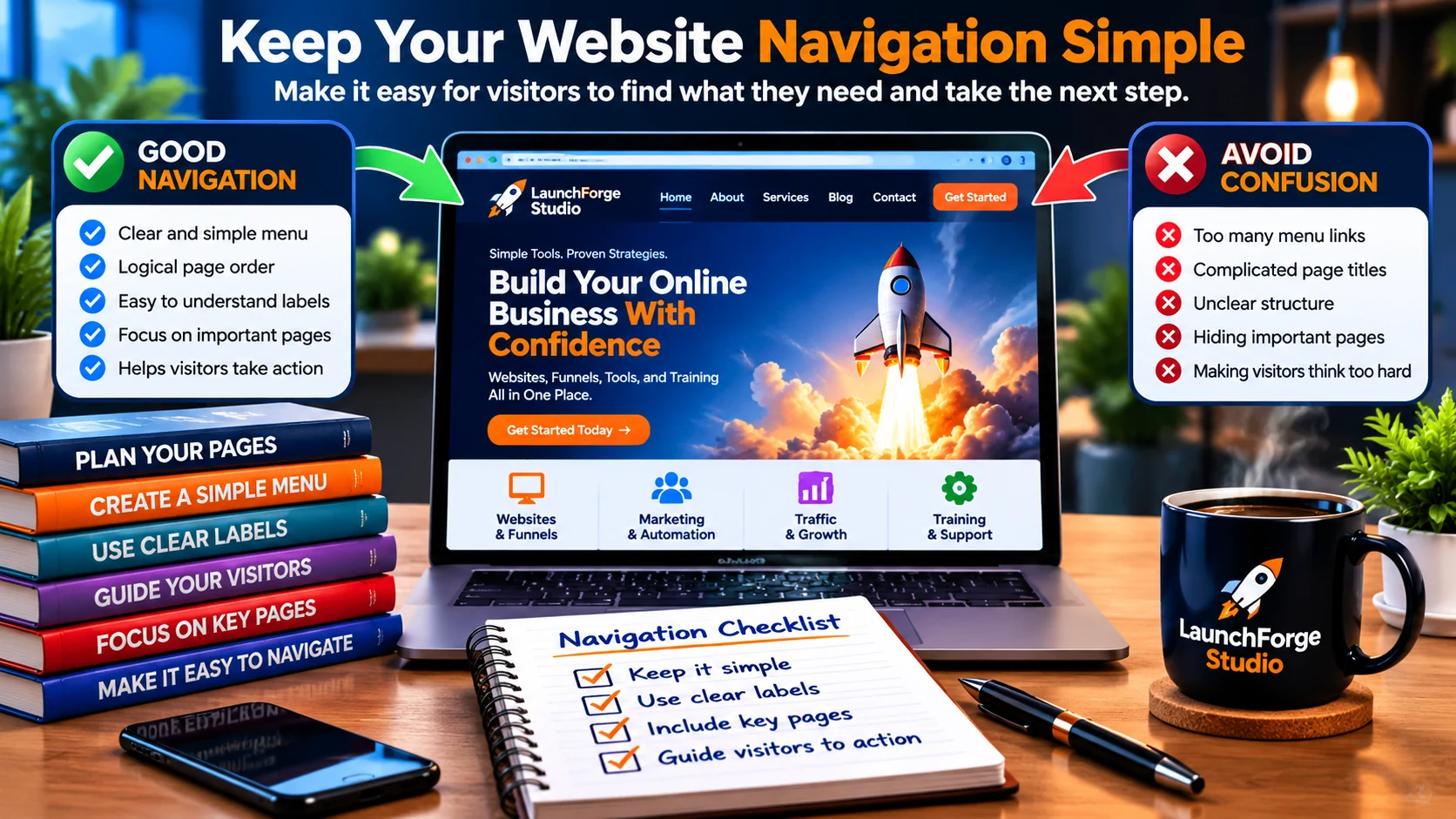
Simple website navigation uses clear labels, logical organization, and easy access to important pages so visitors can quickly find what they need.
Keep Your Main Menu Focused
Your main navigation does not need to contain a link to every page on the website.
It should provide access to the areas most visitors are likely to need.
For a simple business website, that might look like:
Home | About | Services | Blog | Contact
Another business might use:
Home | Products | Resources | About | Contact
There is no universal menu that every business must copy.
The right structure depends on what your visitors need to find.
What matters is keeping the choices understandable.
If your main navigation becomes a wall of fifteen or twenty competing links, it may be time to simplify the structure.
Use Clear Menu Labels
Navigation is usually not the best place to become overly clever with wording.
If a link goes to your About page, calling it About makes sense.
If it leads to your Services page, Services tells the visitor what to expect.
Creative branding can have a place on a website, but visitors should not have to decode your menu before they can use it.
Clarity wins.
Use Dropdown Menus With a Reason
Dropdown menus can help organize related pages underneath a broader topic.
For example:
Services
- Website Design
- Consulting
- Maintenance
That can be useful when a business has several related offerings.
But dropdowns can also become another place where a website grows unnecessarily complicated.
If a menu item contains multiple levels of nested choices and visitors have to carefully navigate through them just to reach a page, reconsider whether the structure is helping.
Use dropdowns to organize.
Do not use them simply because your theme allows you to create them.
Think About Page Hierarchy
Navigation is also about understanding how pages relate to one another.
Some pages are broad.
Others provide more specific information underneath them.
A main Services page might introduce everything the business provides, while individual service pages explain each option in greater detail.
A Blog or Resources page might organize many individual articles.
A Products page might lead into categories and individual products.
Thinking in terms of hierarchy helps keep the website organized as it grows.
Instead of adding every new page directly to the main menu, ask where that page logically belongs.
Do Not Forget the Footer
Your main navigation is not the only place visitors can find links.
The footer can provide access to useful pages that do not need prominent space in the header.
That might include:
- Privacy Policy
- Terms and Conditions
- Affiliate Disclosure
- Contact information
- Social media links
- Important resource pages
- Copyright information
The footer can also repeat a few important navigation options so visitors do not have to return to the top of a long page to continue exploring.
Again, the goal is usefulness.
A footer does not need to become a warehouse containing every link on the website.
Make Important Actions Easy to Find
If there is one action that matters particularly strongly to your business, consider whether it deserves more visibility.
That might be:
Contact Us
Get Started
Shop Now
Book an Appointment
Join the Email List
Depending on the design, an important action can be presented as a more noticeable button or call to action in the header.
But prominence should be earned by importance.
If five different menu items are all styled like the most important button on the page, none of them feels especially important anymore.
Navigation Should Grow With the Website
Your first navigation structure does not have to predict the final form of your business.
Launch the website with a structure that makes sense for what exists now.
As new products, services, articles, resources, and other sections are added, you can revisit the navigation and reorganize it when necessary.
That is much easier than building a giant menu for pages that do not even exist yet.
Your navigation has one basic job:
Help visitors understand where they can go and make it easy for them to get there.
Once that structure is clear, we can start thinking about how the website will actually look and how those pages will be built.
Step 5: Choose a WordPress Theme or Page Builder
With your basic site structure planned, you need a way to control how the website looks and how its pages are built.
In WordPress, that usually involves a theme, and depending on your setup, you may also use a page builder.
Understand the Difference
A WordPress theme helps establish the overall design and presentation of the website.
Depending on the theme, it may influence typography, colors, headers, footers, page layouts, blog templates, and other site-wide elements.
A page builder gives you tools for creating and arranging the content within those layouts.
The exact relationship between the two depends on the tools you choose, and some modern WordPress systems combine many of these capabilities.
The important thing is not the terminology.
It is choosing a setup that allows you to build the website you planned without creating unnecessary complexity.
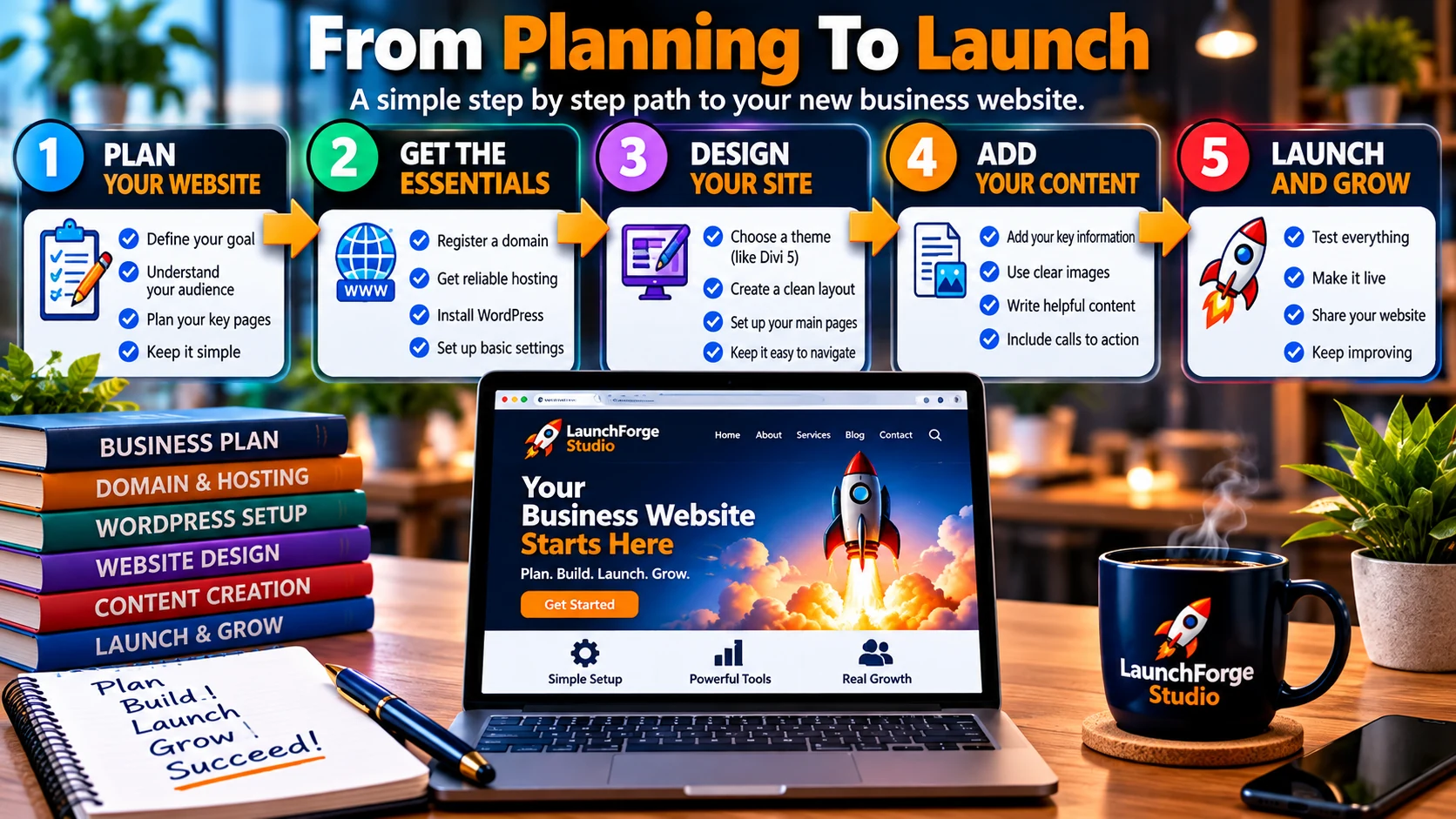
Building a WordPress business website becomes easier when you follow a clear path from planning and setup through design, content, testing, launch, and continued improvement.
Choose Tools You Can Actually Work With
It is easy to compare themes and builders based on enormous feature lists.
More features do not automatically make a tool better for you.
Consider whether the system:
- Works well with WordPress
- Gives you enough design control
- Supports responsive layouts
- Is actively maintained
- Has useful documentation or support
- Fits your technical comfort level
- Can handle the type of website you are building
You should also consider how much time you are willing to spend learning it.
A powerful tool that you never become comfortable using can slow the entire project down.
What LaunchForge Studio Uses
LaunchForge Studio is built with WordPress and Divi 5.
Divi 5 provides visual design tools for building page layouts while also allowing site-wide elements and design choices to be managed as part of a larger website system.
That is the environment I use while building LaunchForge, so you will occasionally see Divi 5 referenced in tutorials and examples across the site.
That does not mean you need Divi 5 to follow the principles in this guide.
The same basic process applies whether you use Divi 5, another WordPress builder, or a different theme-based approach:
Plan the page, organize the content, make the design support the message, and give the visitor a clear path forward.
Do Not Let Design Become the Project
Once you have a visual builder in front of you, it is very easy to spend hours adjusting tiny details.
Move the heading.
Change the font.
Move it back.
Try another color.
Adjust the spacing by three pixels.
Then discover you still have not written the Services page.
Design matters, but the purpose of the website comes first.
Choose a solid visual foundation, keep the design consistent, and build the pages the business actually needs.
You can refine the details after the website has something useful to refine.
Step 6: Build Your Homepage Around the Visitor
Your homepage is often the first page a visitor sees, but that does not mean it needs to explain every detail of your business.
Its main job is to help someone quickly understand where they are, what the business offers, and where they should go next.
Start With a Clear Message
The top of the homepage should answer a basic question:
Why should this visitor keep reading?
A useful opening usually communicates who you help, what you provide, or what problem you help solve.
Avoid making visitors work through vague slogans before they understand what the business actually does.
Clarity comes first.
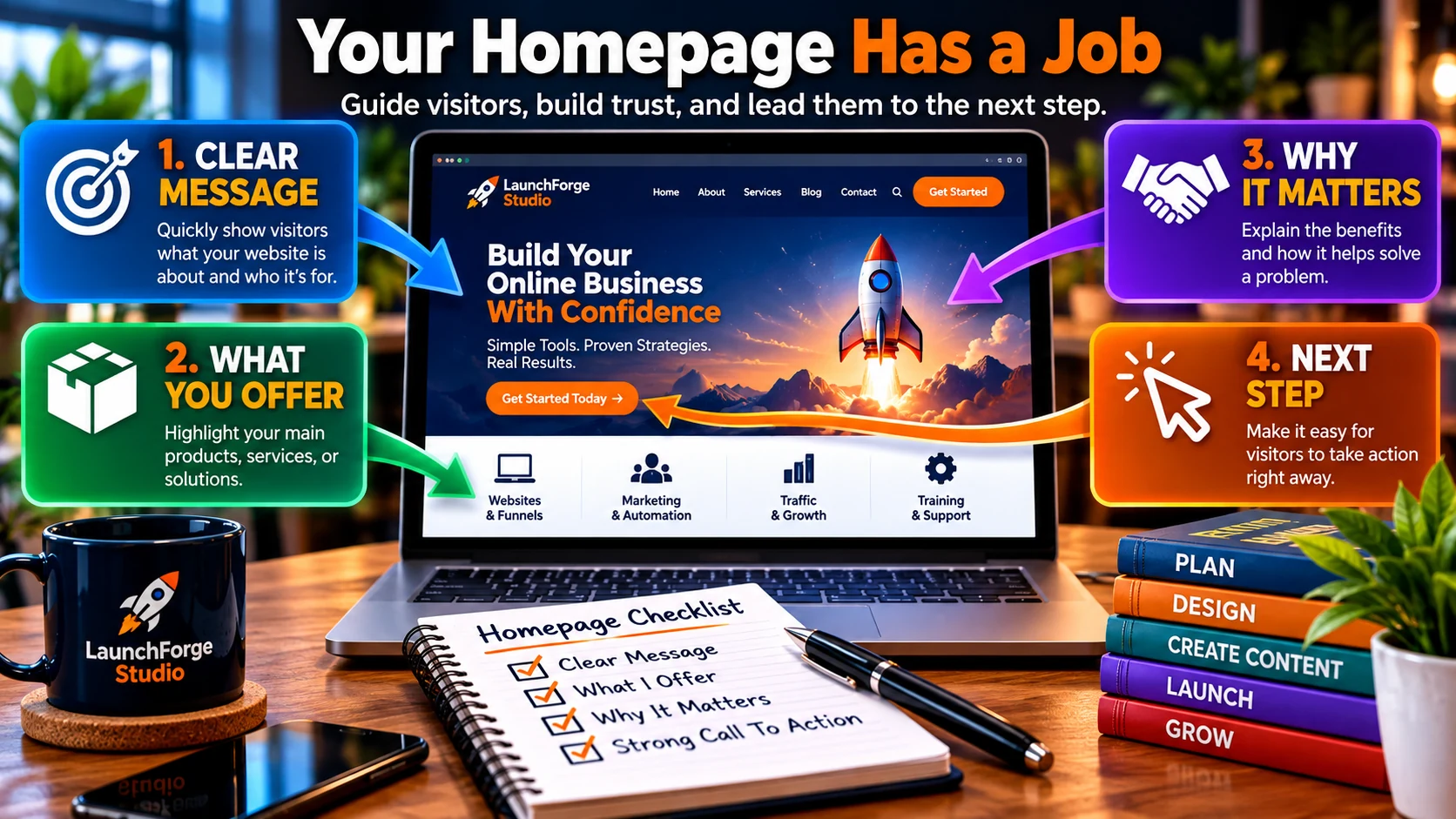
A useful business homepage quickly communicates a clear message, shows visitors what you offer, explains why it matters, and gives them an obvious next step.
Guide Visitors Through the Page
The rest of the homepage can introduce the most important parts of the business.
Depending on your website, that might include:
- A brief explanation of your products or services
- The main problems you help solve
- Links to important pages or resources
- Trust-building information
- Testimonials or examples when appropriate
- A short introduction to the business
- A clear call to action
You do not need every one of these elements.
Use the sections that support the job you established for the website earlier.
Give People Somewhere to Go
A homepage should not end with the visitor wondering what to do next.
If someone wants to learn more about a service, show them where to go.
If you want them to contact you, provide a clear path to the Contact page.
If your business uses email marketing, you might invite them to join your list or download a useful lead magnet.
If you sell products, help them reach the appropriate product or category.
The exact action will vary, but the principle remains the same:
Do not make the visitor guess what the next step is.
Build for Understanding Before Decoration
A beautiful homepage can make a strong first impression.
But visual polish cannot compensate for a confusing message.
Before worrying about animations, effects, elaborate layouts, or every last design detail, make sure the page works without them.
Can someone understand the business?
Can they identify what is available?
Can they find the next useful step?
If the answer is yes, you have the foundation of a homepage that can support the rest of the website.
Step 7: Build Your About, Products or Services, and Contact Pages
Once your homepage provides the starting point, the rest of your core pages can answer the questions visitors naturally have about the business.
You do not need to repeat everything from the homepage.
Each page should have its own job.
Build an About Page That Creates Context
Your About page can explain the story, purpose, experience, or people behind the business.
But remember who the page is ultimately for:
The visitor.
Instead of only describing yourself or the company, connect that information with why it matters to the people you serve.
Help visitors understand what the business stands for, how it approaches its work, and why they may want to continue exploring.
Make Your Products or Services Easy to Understand
Your products or services pages should clearly explain what someone can get from the business.
Depending on what you offer, useful information may include:
- What the product or service is
- Who it is for
- What problem it addresses
- What is included
- How the process works
- Pricing when appropriate
- What someone should do next
Avoid assuming visitors already understand industry terminology or how your offer works.
If they need information before making a decision, give them a reasonable way to find it.
Make Contact Simple
Your Contact page should remove unnecessary friction between someone wanting to reach you and actually doing it.
Provide the contact methods that make sense for your business and clearly explain what visitors can expect.
If you use a form, ask for the information you actually need.
A person with a simple question should not have to complete a twenty-field application just to send a message.
You can also use the Contact page to set expectations, such as business hours or typical response times, when that information is useful.
Let Each Page Support the Next Step
These pages do not exist in isolation.
Someone might move from the homepage to your About page, then to a service, and finally to Contact.
Another visitor might arrive directly on a service page through a search engine and never see the homepage first.
That is why important pages should make sense on their own while still connecting naturally with the rest of the website.
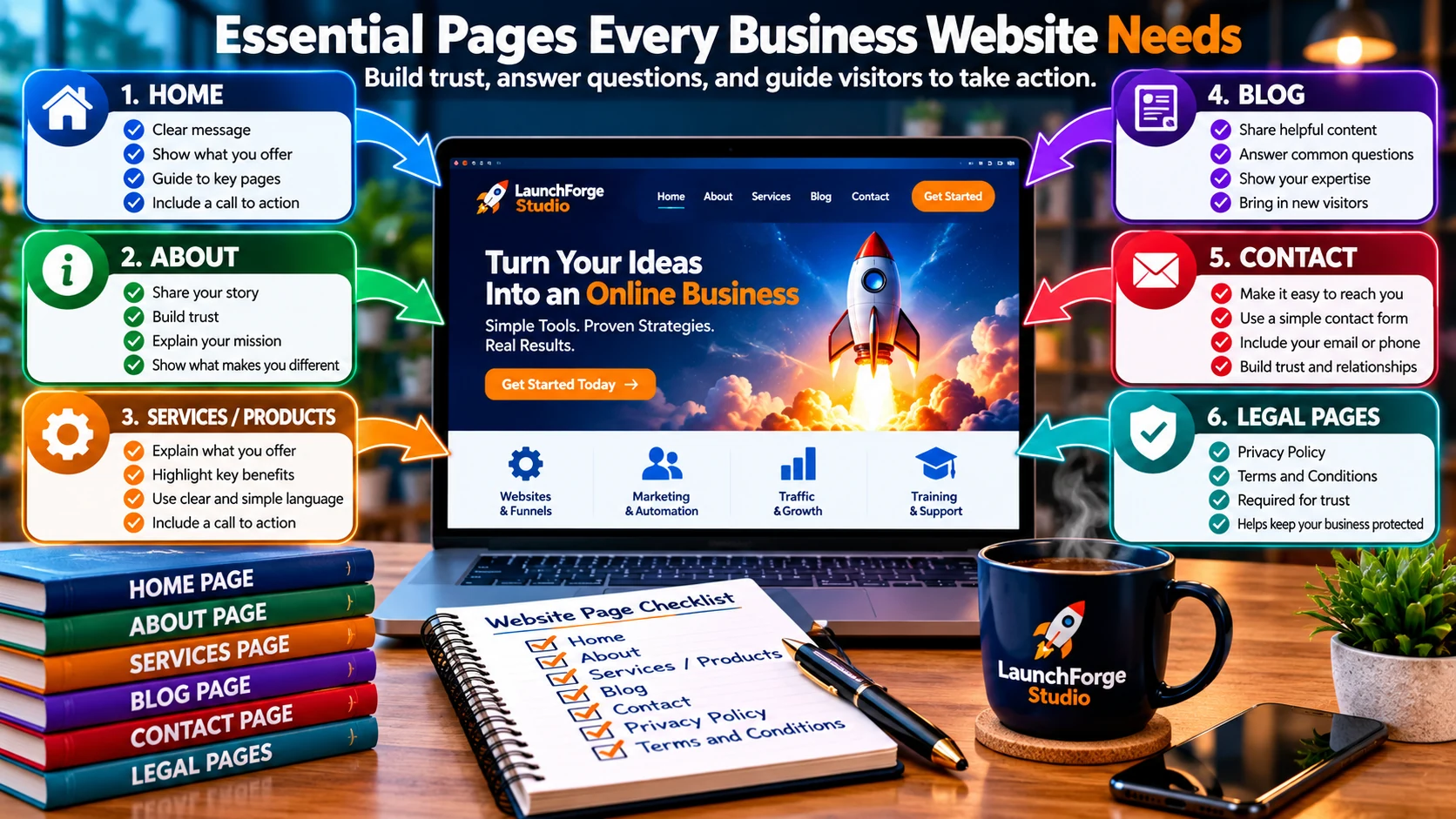
A business website usually needs a focused set of pages that explain the business, build trust, answer questions, provide useful information, and give visitors a clear way to take action.
Give visitors useful information.
Then make the next step easy to find.
Step 8: Give Visitors a Clear Next Step
A visitor can understand your business, like what they see, and still leave without doing anything if the website never gives them a clear next step.
That is where a call to action, or CTA, becomes important.
A CTA simply tells or shows the visitor what they can do next.
That might be:
- Contact the business
- View a product or service
- Request a quote
- Make a purchase
- Schedule an appointment
- Join an email list
- Download a lead magnet
- Read another useful resource
The right action depends on the page and the business.
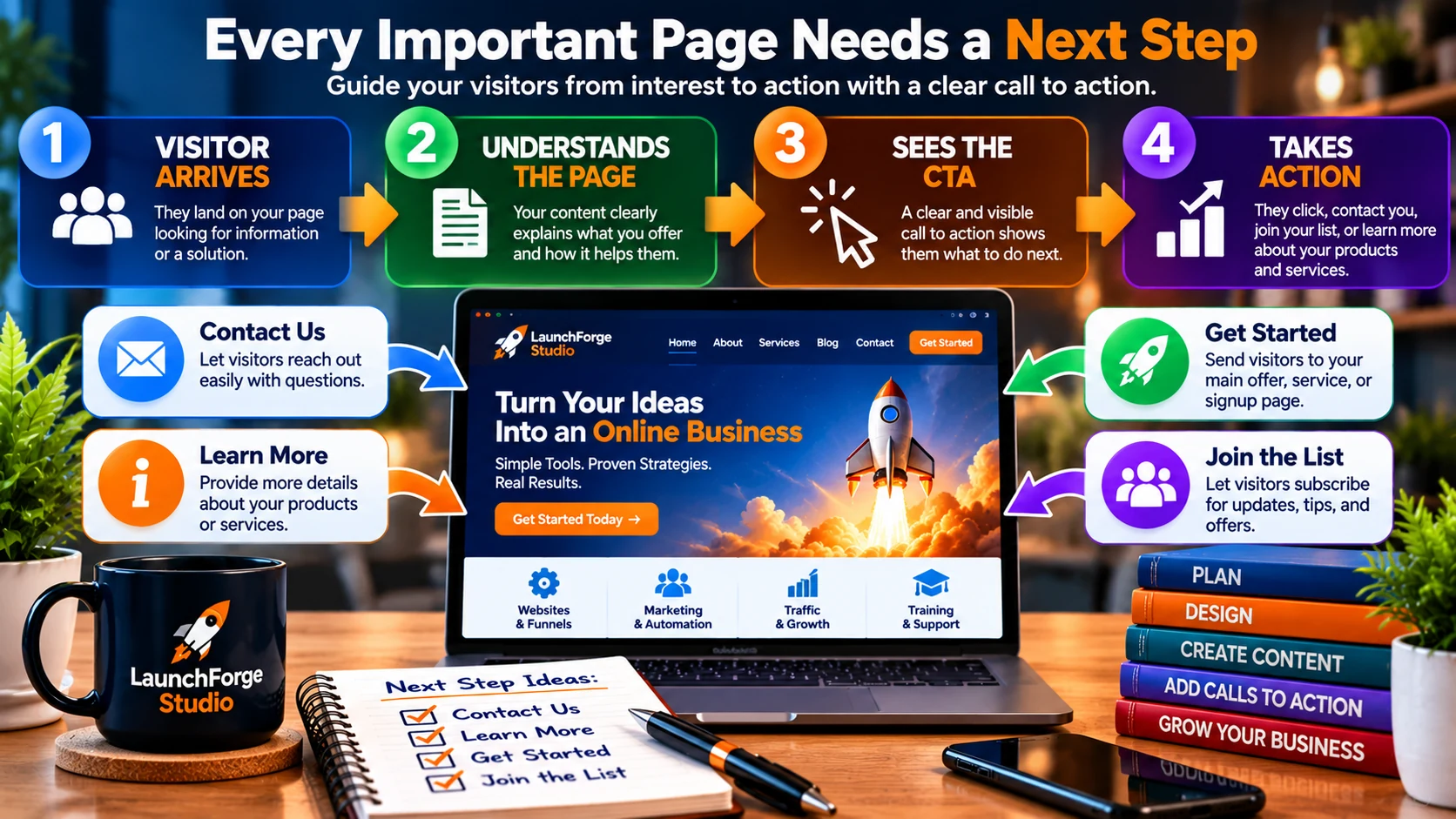
A clear call to action helps move visitors from understanding your page to taking the next step, whether that means contacting you, learning more, getting started, or joining your email list.
Match the CTA to the Page
Not every page needs the same call to action.
Someone reading an educational article may not be ready to buy anything.
Offering a related resource or inviting them to join your email list may make more sense.
Someone reading a detailed service page may be much closer to contacting the business.
Think about where the visitor is and what would be a reasonable next step from that point.
Use Lead Capture When It Serves a Purpose
If building an email audience is part of your business strategy, your website can provide opportunities for visitors to stay connected.
One approach is offering a useful lead magnet in exchange for an email address.
That might be a checklist, guide, template, resource, or another piece of information relevant to the audience.
The goal is not simply to collect as many email addresses as possible.
It is to create a useful reason for the right people to begin a relationship with the business.
From there, email can help you continue that relationship beyond the first website visit.
Keep the Next Step Obvious
Calls to action do not need to be aggressive.
They need to be clear.
A visitor should not have to search the page for the one tiny link that allows them to contact you, subscribe, purchase, or continue.
Use straightforward language and make important actions easy to recognize.
Your website brought the visitor this far.
Give them somewhere useful to go next.
Step 9: Make Your Business Website Mobile Friendly
Your business website cannot be designed only for the desktop screen sitting in front of you.
Visitors may arrive from phones, tablets, laptops, and screens of many different sizes.
Your website needs to remain useful across them.
Check More Than Whether the Page Fits
A mobile-friendly website is not simply a desktop page squeezed onto a smaller screen.
Look at the actual experience.
Check whether:
- Text is comfortable to read
- Buttons and links are easy to tap
- Images fit properly
- Menus are easy to use
- Forms work correctly
- Sections have enough spacing
- Important content appears in a sensible order
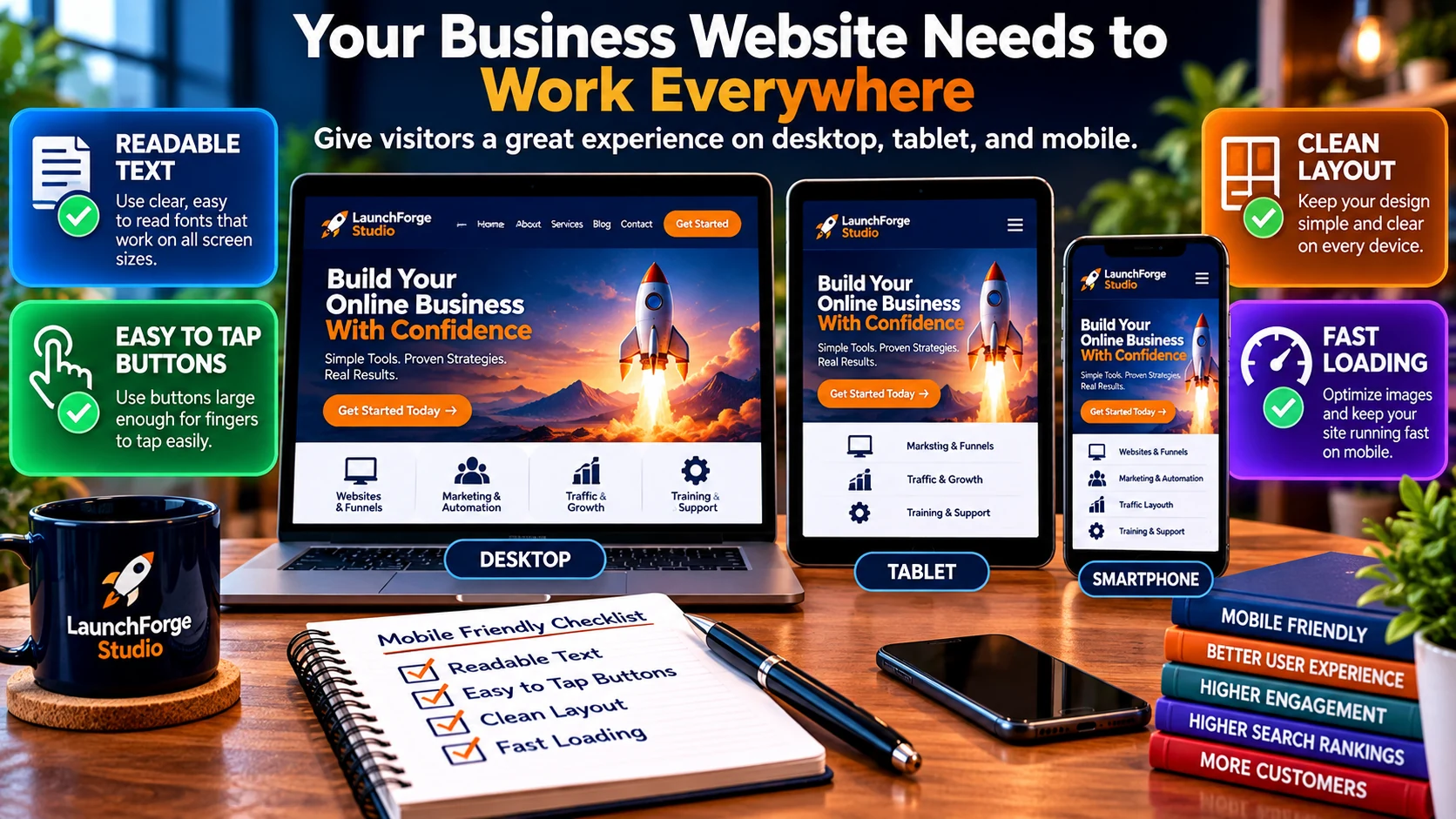
A mobile-friendly business website should provide a clear experience across desktop, tablet, and smartphone screens with readable text, easy-to-tap buttons, clean layouts, and fast loading.
Something that looks great on a large monitor can become awkward once the available space gets smaller.
Pay Attention to Mobile Page Speed
Large images, unnecessary scripts, excessive effects, and other heavy page elements can slow a website down.
That matters on any device, but mobile visitors may be using connections that are slower or less reliable than yours.
Optimize images before uploading them when possible and avoid adding features simply because they look impressive.
Every element should have a reason to be there.
Test the Actual Website
Responsive design tools inside WordPress or your page builder are useful, but do not rely on previews alone.
Open the website on an actual phone.
Navigate the menu.
Tap the buttons.
Read the content.
Complete important forms.
Try to use the website the way a visitor would.
Small problems are much easier to fix when you find them before your customers do.
A business website should not merely look mobile friendly.
It should be easy to use on mobile.
Step 10: Handle the Basic SEO Before You Launch
Search engine optimization can become a large subject very quickly.
You do not need to master all of SEO before launching your first business website.
You should, however, give search engines and visitors a clear idea of what your pages are about.
Give Each Important Page a Clear Topic
Start with the purpose of the page.
What question does it answer?
What product or service does it explain?
What would someone searching for that information likely type into a search engine?
Use that understanding to guide the page title, headings, URL, and content.
Do not force the same keyword into every paragraph.
Write for the person who needs the information first.
Create Useful Page Titles and Descriptions
Important pages should have a descriptive SEO title and meta description.
The title helps communicate what the page is about.
The meta description can give someone additional context about what they will find if they click.
Neither should be written only to satisfy an SEO plugin score.
Make them accurate, readable, and relevant to the page.
Use a Clear Heading Structure
Headings help organize longer pages into understandable sections.
Your main page topic should be clear, while supporting headings can break the content into logical pieces.
That makes the page easier for visitors to scan and helps establish the structure of the content.
Link Related Pages Together
Internal links help visitors move between useful information on your website.
They also create connections between related pages and topics.
If an article explains something in greater detail, link to it where it naturally helps the reader.
If a service page answers the logical next question, give the visitor a path to reach it.
The goal is not to stuff links everywhere.
Connect pages when the connection is genuinely useful.
Make Sure Search Engines Can Access the Site
Before launch, check that you have not accidentally left WordPress configured to discourage search engines from indexing the website.
Once the site is live, you can also connect tools such as Google Search Console to monitor how Google discovers and indexes your pages.
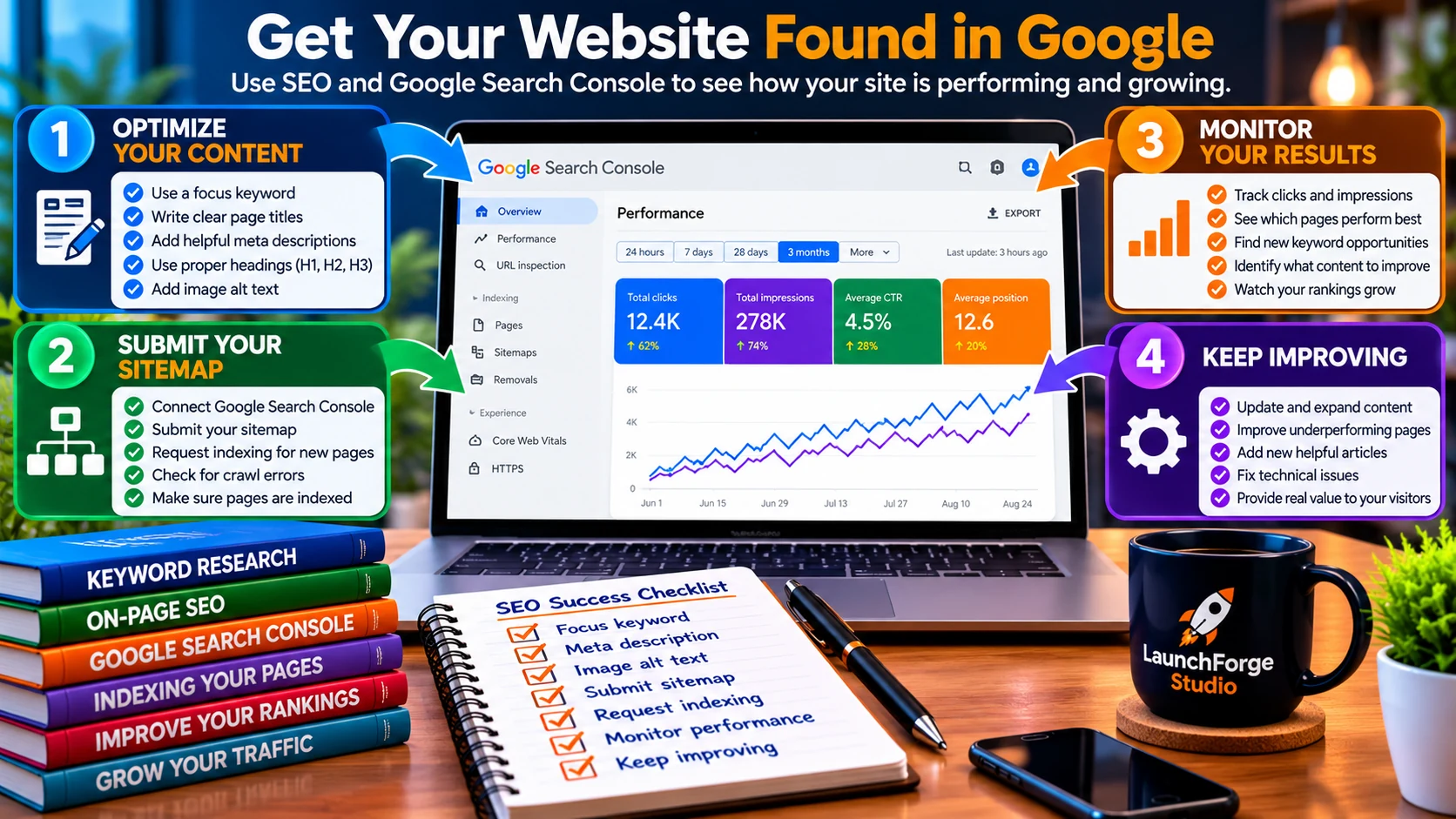
Basic SEO and Google Search Console can help search engines understand your website, get important pages indexed, monitor search performance, and identify opportunities to improve.
SEO does not end when the website launches.
But getting these fundamentals right gives the site a much cleaner starting point.
Step 11: Test Your Business Website Before You Launch
You have built the pages.
The navigation is in place.
Your calls to action have somewhere to go.
The website works on mobile.
The basic SEO foundation is there.
Now comes a step that is easy to rush when you are excited to finally get the website online:
Test the entire thing.
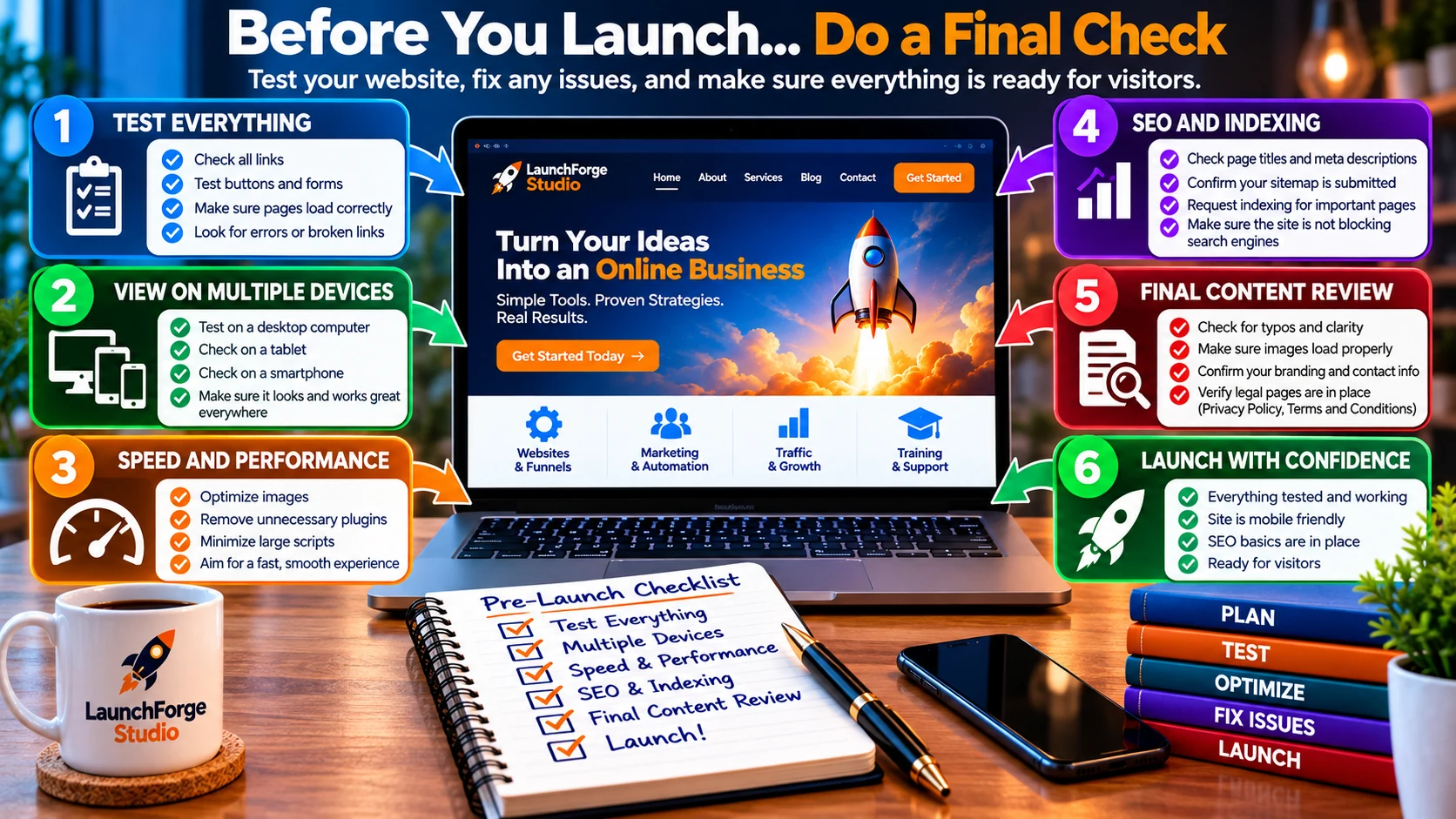
Before launching your business website, test the important links and forms, review it across devices, check performance and SEO, review the content, and make sure the site is ready for visitors.
When you have spent hours building a website, you already know how everything is supposed to work.
Your visitors do not.
That makes testing the website from their perspective especially important.
Start With the Main Visitor Journey
Go back to the primary goal you identified at the beginning of this guide.
What do you ultimately want a visitor to be able to do?
Now test that journey from beginning to end.
For example, if the goal is generating inquiries, you might:
Homepage → Services → Contact → Submit Form
If the goal is building an email list:
Article → Lead Magnet → Opt-In Form → Confirmation
If the website sells something:
Homepage → Product → Purchase Process
You are not simply checking whether individual pages exist.
You are checking whether the pieces actually connect.
Test Every Important Link and Button
Click through the website.
Do not assume a button works because you remember creating the link.
Check your:
- Main navigation
- Footer navigation
- Calls to action
- Internal links
- External links
- Social media links
- Buttons
- Logo link
- Contact information
Look for links that lead to the wrong page, open unexpectedly, or return an error.
A website can look completely finished while a single broken button prevents someone from taking the action you built the page around.
Test Your Forms Yourself
If your website contains a contact form, email opt-in, quote request, registration form, or another type of lead capture, submit it yourself.
Then check what happens.
Did the form submit successfully?
Did the information reach the correct destination?
Did the visitor receive the expected confirmation?
If the form connects to an email marketing or automation system, did that process begin correctly?
Do not assume a form works simply because it looks right on the page.
A form is not working until you know what happens after someone clicks Submit.
Review the Website on Desktop and Mobile
You already checked mobile responsiveness while building the website.
Do it again before launch.
This time, review the site as a complete experience rather than inspecting one section at a time.
Navigate through several pages on an actual phone.
Check the menu.
Tap the buttons.
Try the forms.
Scroll through longer pages.
Look for strange spacing, oversized images, text that is difficult to read, or anything else that makes the mobile experience harder than it should be.
Then repeat the process on desktop.
Read the Website Like a Visitor
Now stop looking at the design for a moment and read the content.
Ask yourself:
Would someone unfamiliar with this business understand what it does?
Check for obvious spelling mistakes, unfinished placeholder text, repeated paragraphs, confusing sentences, or sections that no longer make sense after other parts of the website changed.
Also verify practical information such as:
- Business name
- Email address
- Phone number when applicable
- Business hours when applicable
- Product or service information
- Pricing when displayed
- Social media links
Small mistakes are easier to notice when you deliberately switch from builder mode to visitor mode.
Do Not Wait for a Perfect Website
Testing is important.
Perfection is a different standard.
There will almost always be something you could adjust.
A little more spacing.
A slightly different image.
Another sentence you could rewrite.
A button you could move ten pixels to the left and then move back tomorrow.
At some point, continued tweaking stops improving the website in a meaningful way.
The goal of testing is to catch problems that affect the visitor, the business, or the functionality of the site.
If the important pages work, the information is accurate, the website is usable across devices, and visitors can complete the actions you intended, you are getting very close to launch.
Step 12: How to Build a Business Website With WordPress and Launch It
Once you have tested the important parts of your website and fixed the problems that matter, it is time to launch.
For a new business owner, this moment can feel bigger than it needs to.
You may still see things you want to improve.
That is normal.
Launching does not mean declaring the website finished forever.
It means the website is useful enough to begin doing its job.
Make Sure the Website Is Ready to Be Found
Before announcing the site, perform a few final checks.
Confirm that:
- Your domain loads the correct website
- HTTPS is working properly
- Important pages are published
- Navigation works
- Forms are functioning
- Your site title and basic SEO information are correct
- Search engines are not being intentionally blocked
If you used a temporary coming-soon or maintenance page while building, make sure visitors can now access the actual website.
This is also a good time to confirm that your sitemap is available if your SEO setup provides one.
Connect Google Search Console
Once the website is live, Google Search Console can help you understand how Google discovers and indexes your site.
You can use it to monitor information such as:
- Whether important pages are indexed
- Search queries that generate impressions and clicks
- Pages appearing in search results
- Indexing or crawling issues reported by Google
You do not need to become obsessed with the numbers on launch day.
A brand-new website may take time to be discovered, crawled, indexed, and begin appearing for relevant searches.
The important thing is establishing the connection so you can learn from the data as it develops.
Submit Important New Pages for Indexing
When you publish an important page or article, you can inspect its URL in Google Search Console and request indexing.
That does not guarantee an immediate ranking or even immediate indexing.
It simply gives Google another signal that the URL is available to be crawled.
This is part of the publishing process I use with LaunchForge Studio when new content goes live.
Publish the content.
Check the live page.
Then submit the URL through Search Console.
Start Sending Real Visitors to the Website
A website becomes much more useful once real people begin interacting with it.
You might start by sharing it through:
- Existing social media profiles
- Your email list
- Business profiles
- Relevant marketing campaigns
- Existing customers or contacts
- New educational content
You do not need traffic from every possible source immediately.
Start with the channels that make sense for your business and learn from what happens.
Real visitors can reveal things you never noticed while building.
They may click pages you did not expect.
They may ignore something you thought was important.
They may ask questions that show you where the website needs more explanation.
That information is useful.
Your Website Is Now Something You Can Improve
Learning how to build a business website with WordPress does not end when you launch it.
Before launch, you are making decisions based largely on what you believe visitors will need.
After launch, you can begin learning from what they actually do.
You can publish new content.
Improve existing pages.
Strengthen calls to action.
Add internal links.
Expand products or services.
Build an email audience.
Improve search visibility.
Add new functionality when there is a genuine reason for it.
That is much more productive than trying to predict every future requirement before anyone has visited the website.
Launch is not the end of building your business website.
It is the point where the website can finally start teaching you what to build next.
You Do Not Need to Build the Perfect Business Website
If there is one idea worth carrying with you from this guide, it is this:
You do not need to know everything about building websites before you can build a useful business website with WordPress.
You need to understand what the website is supposed to accomplish.
You need a solid foundation.
You need pages that have a reason to exist.
You need navigation that helps people find their way around.
You need content that helps visitors understand the business.
And you need a clear next step when someone is ready to take one.
Everything else can develop from there.
It is easy to look at an established website and forget that it probably did not begin with every page, feature, article, automation, integration, and marketing system it has today.
Websites grow.
Businesses grow.
What customers need can change.
What you understand about your own business can change too.
That is why building the first useful version matters more than trying to predict the final version.
Build the Next Useful Piece
This is something building LaunchForge Studio continues to reinforce for me.
LaunchForge did not appear one day as the website it is now.
Pages were built.
Articles were published.
Systems were connected.
Ideas were tested.
Some things were improved after seeing them in the real website instead of imagining how they might work beforehand.
And there is still more to build.
That same approach can make your first business website much less intimidating.
Start with what the business needs now.
Build it well enough to be useful.
Launch it.
Learn from it.
Then build the next useful piece.
If you want to follow that same process as LaunchForge continues to grow, Build Along with LaunchForge follows the real-world lessons, decisions, tools, experiments, and systems that come from building an online business one piece at a time.
You do not need to build your entire future today.
Build the website your business needs now, and give it room to become what your business needs next.